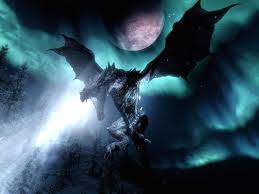
The screenshots look like vanilla with an extremely high resolution. That is why the textures look more crisp. Run the game on 2160p with best AA/AF settings and you will get the same crispiness. Plus a few simple (but demanding) ini tweaks, like increasing the loaded area size, increasing fov (which is a must in this game anyway, the default fov is as low as 65) and increasing the draw distance of objects beyond max. No magic or secret tweaks involved. And up close the textures will still look lowres.
No, unfortunately, they are not vanilla. To illustrate, I took a stab at making similar shots.
Wild stab 1: http://i.imgur.com/7KdU8.jpg - Framed the shot, took it, quit out.. then realized I forgot to turn the UI stuff off. Pro.
Wild stab 2: http://i.imgur.com/7v9Hq.jpg - mmhm... yup I can do it. Dragon was nice enough to pose for the shot. Gonna send him a nice fruit basket.
Incidentally, for those of you looking for "Dead End Thrills" INI settings-- a bit of surfing around on neogaf turned em up. I took the above shots before I knew his settings. Mine were pretty darn close- basically just stupid high view distances on various things like grass, trees, mesh and shadows. No hidden gems at all. All the rest were the standard INI mods you've all seen in a hundred different "Make your game awesome" threads.
http://www.mediafire.com/?yywfo3l9rdfhfw5
Be VERY careful about the changes you make to skyrim.ini. The ugridload will wreck your save games- don't save over them because the ugrid change saves with the save game.
After you're done ini fiddling:
Be sure to apply Large Address Aware change to TESV.exe. You're going to need the 4gb of breathing room of this 32-bit exe due to your crazy cell loading.
Feel free to use your hardware AF 16x setting and turn them off in-game (iMaxAnisotropy=0). The driver does a better job resulting in sharper distant textures.
You'll want at least 4x AA as well as transparency AA of some sort (multisampling on low-end, sparse grid super-sampling on upper end). If you're just doing this for screenshots, this isn't that important since you'll be applying your own ghetto supersampling when you down-sample the image anyway.
You're going to want to enable Ambient Occlusion using nvidia inspector or radeon tools. However it looks we'll be getting something better as ENB from ENBSeries has started working on Skyrim. That is a better solution than forcing it in drivers because forced AO can cause issues with effect such as fog. Personally, I had it on for these shots but turn it off during gameplay. Too much of an FPS hit and I've encountered issues where water loses it's reflective and turbulent quality and becomes transparent. Saving and reloading fixes it until it starts happening again but meh.
Go to command console and type "tfc" - That gives you a free camera to frame your shot the way you want. It's a toggle, so type again to turn it off.
Finally, you're going to need a post-processor of some sort if you want that sharp texture look you see in the screenshots while actually playing. http://www.skyrimnexus.com/downloads/file.php?id=131. If not, you'll have to do it in post.
That's it.
-Chan
 » Sat May 19, 2012 2:31 am